

CS Bulletin – December 2025 BACnet MS/TP Installation Instructions
To: Install and Service Contractors responsible for performing BACnet MS/TP installations
Subject: Step-by-Step BACnet MS/TP Installation Instructions
Related Products: Airsys HVAC Units with BACnet MSTP Interface
Background:
This bulletin provides step-by-step instructions for installing and configuring BACnet MS/TP communication on Airsys HVAC units. These steps ensure proper setup of the BACnet card, connection to the BMS, and verification of communication using BACset software.
Instructions:
1. Install Software:
- Download and install BACset software Shared in your laptop
2. Connect Hardware:
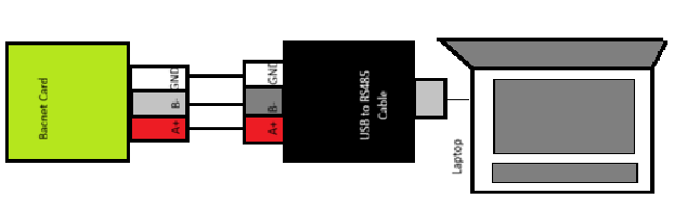
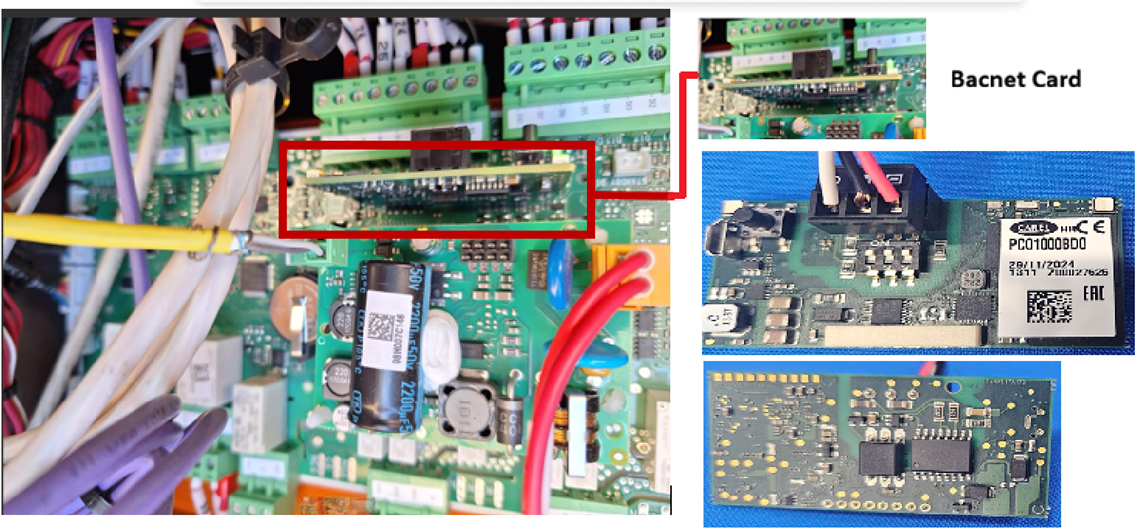
- Attach the Bacnet Card to the Carel microcontroller board
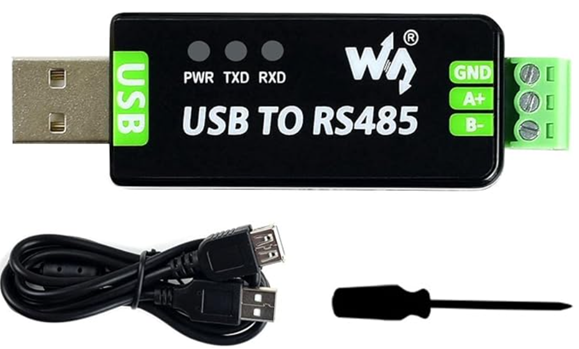
- Connect the positive terminal of the Bacnet Card(A+) to positive terminal of the USB-RS485 converter
- Connect the Negative terminal of the Bacnet Card (B-) to the negative terminal of the USB-RS485 converter
- Connect the ground terminal to the ground terminal of the USB RS485 cable
- Connect the other end USB-RS485 cable to the laptop
3. Identify COM Port:
- Open Device Manager in Windows
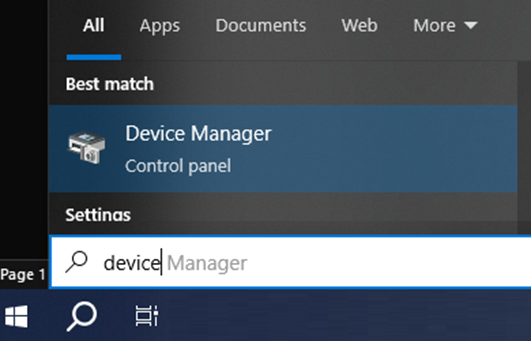
- Expand Ports (COM & LPT).
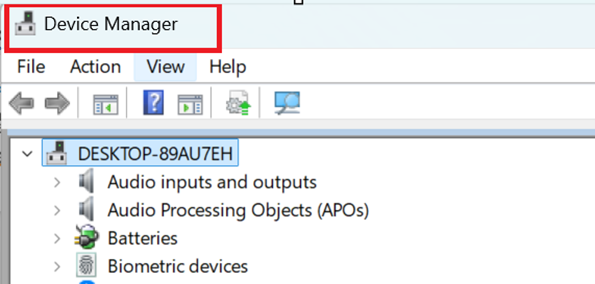
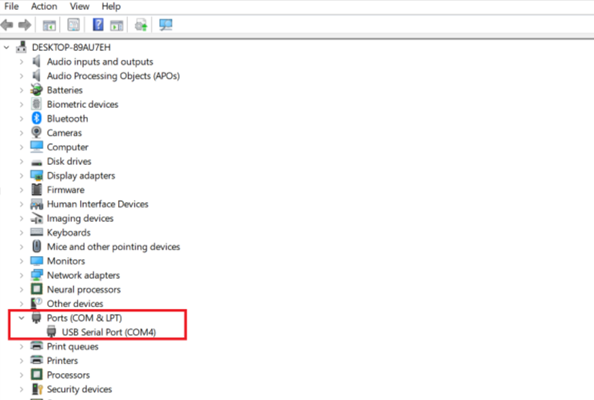
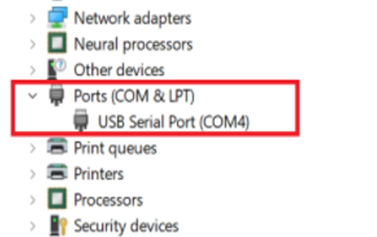
- Note the correct COM port number assigned.
4. Launch BACset:

- Open the BACset application.
- Select BACnet/IP(During Initial set up)
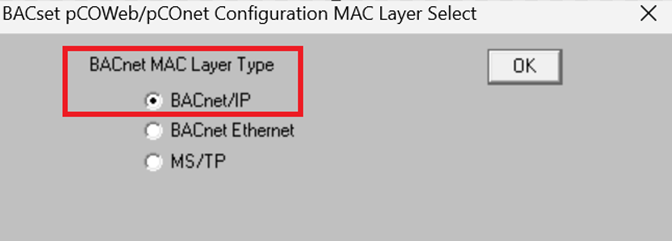
- Click OK
5. Configure BACdoor:
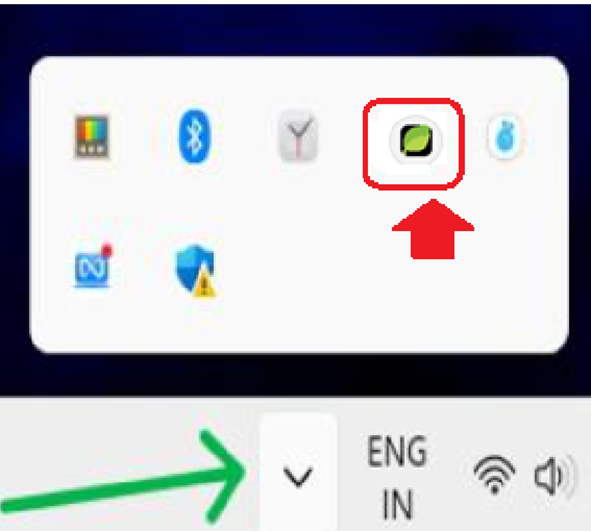
- Open BACdoor from the system tray
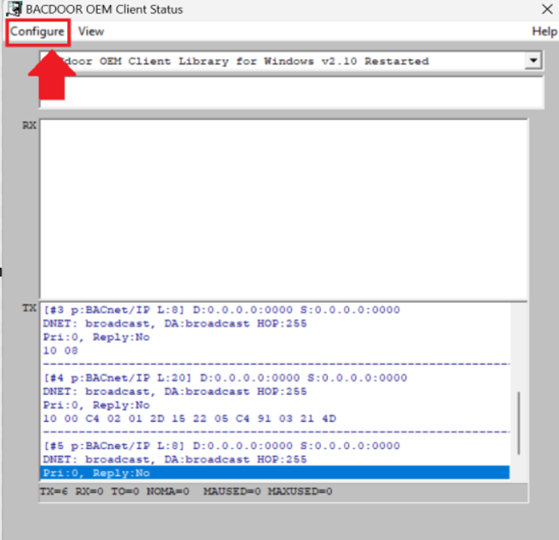
- Go to Configure
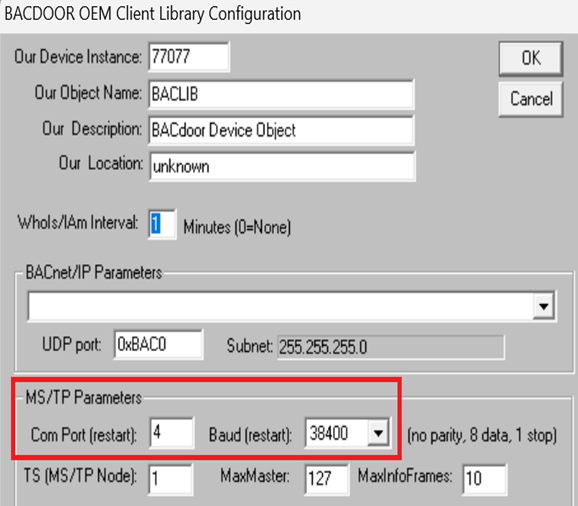
- Select the COM port (from step 3)
- Set the baud rate to 38400
- Click OK
6. Restart BACset:
- Close and relaunch BACset
- Select BACnet MS/TP
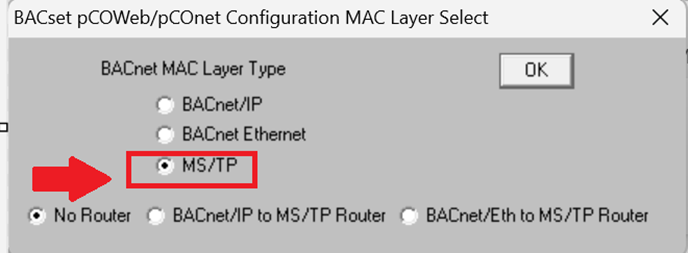
- Click OK
7. Configure Device:
- Navigate to the System tab
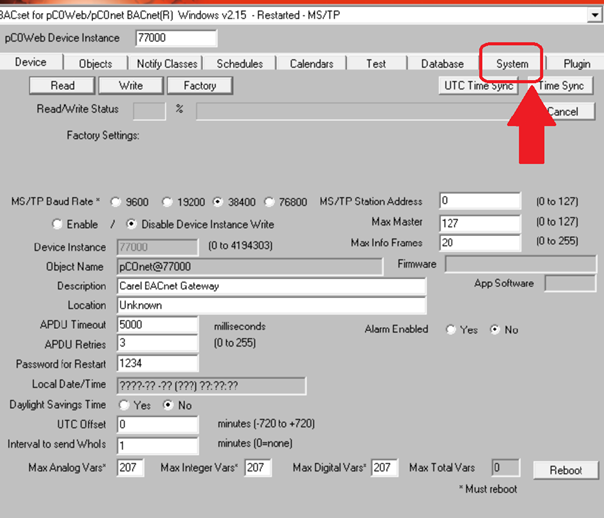
- Set Interface Protocol to Carel
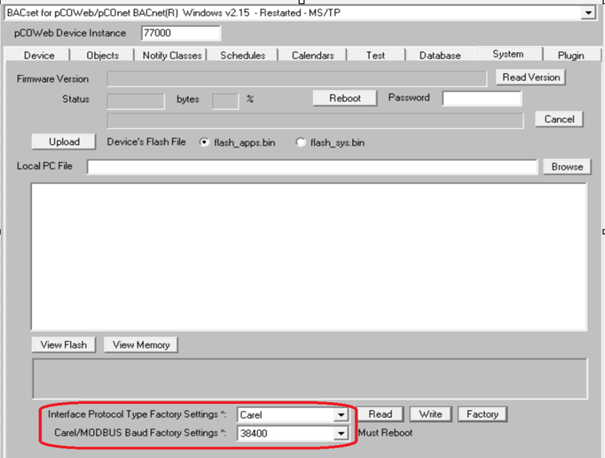
- Set Baud Rate to 38400
8. Reboot Device:
- Navigate to the Device tab(Set device instance as required by End user)
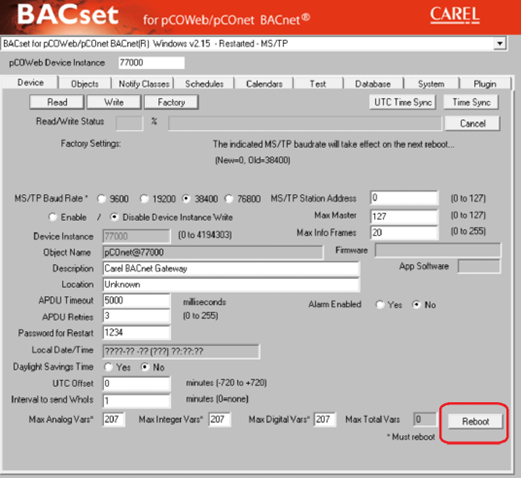
- Select Reboot.
- Wait one minute for restart
9. Verify Operation:
- Switch to the Object tab.(excel file for analog values of various parameters)
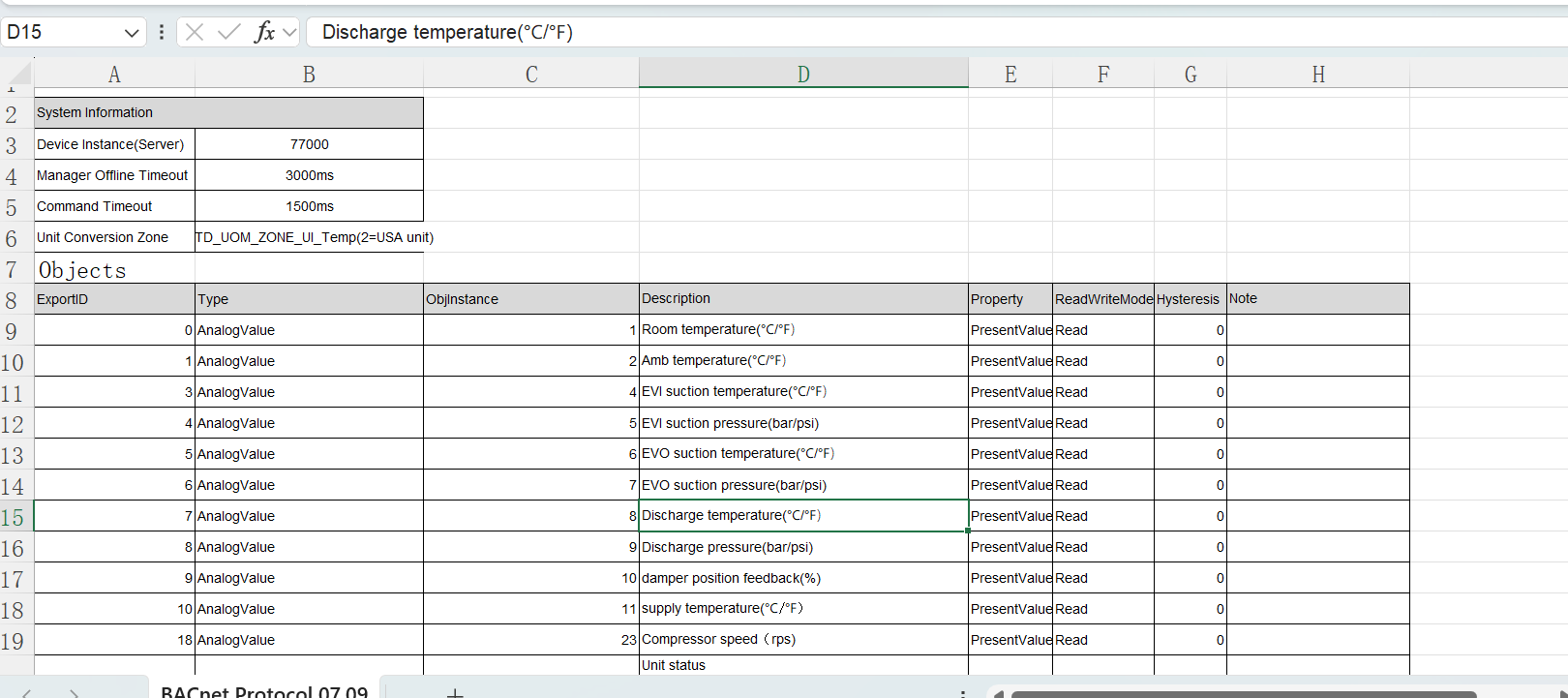
- Read Analog Value 1 (this should indicate the indoor temperature).
Testing:
- Confirm the BMS is reading the device
- Ensure temperature and other objects are polling correctly
- Verify alarms and status points respond appropriately